
Markdown: edit, read or side by side
Three views for every note: edit the source, read the result, or see both at once.
 Free on Linux
KeepGlide for desktop is a desktop app for Linux (x86_64): your notes, PDFs and files, linked together and, if you choose, kept in step with Google Drive. For people who live in Markdown and PDFs and want it all local-first.
Download for Linux See it in action Local mode is free. When paid licenses open, a license will add Sync and Cloud: US$19, one-time. Free updates for all 1.x versions.
In Sync mode, changes you make offline wait in a queue and go out when the connection returns.
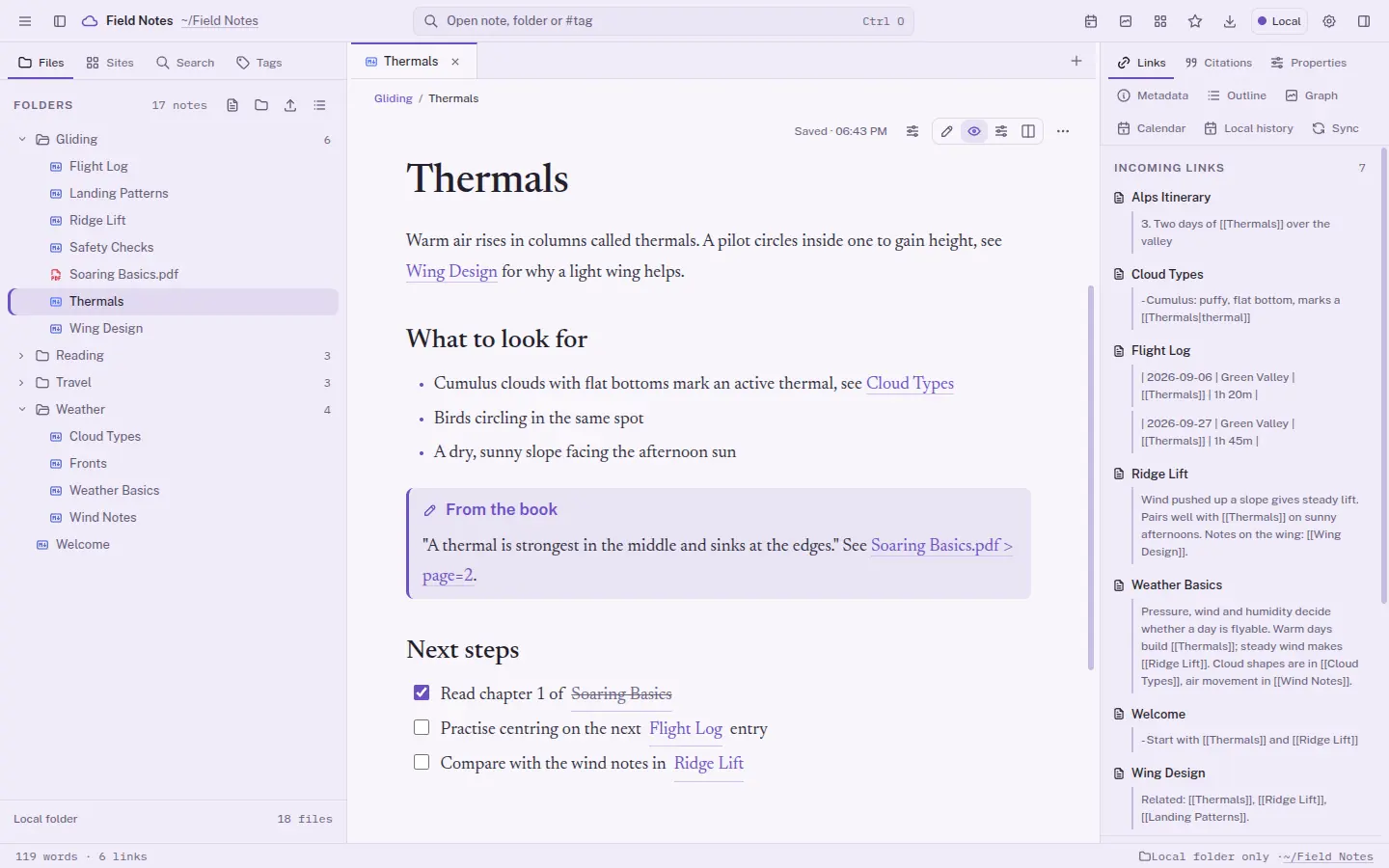
Connect notes with [[name]] and follow backlinks across the vault, the folder that holds your notes.
Highlight and annotate PDFs, then cite the exact page from your notes.
Local mode stays on your computer and needs no account.
Local mode is free. When paid licenses open, a license will add Sync and Cloud: US$19, one-time. Free updates for all 1.x versions.
or
See it in actionDesktop app for Linux (x86_64). Local mode needs no account.
In motion
Short clips recorded in the real app, with a small demo vault.

Follow wikilinks between notes and see each incoming and outgoing link beside the text.
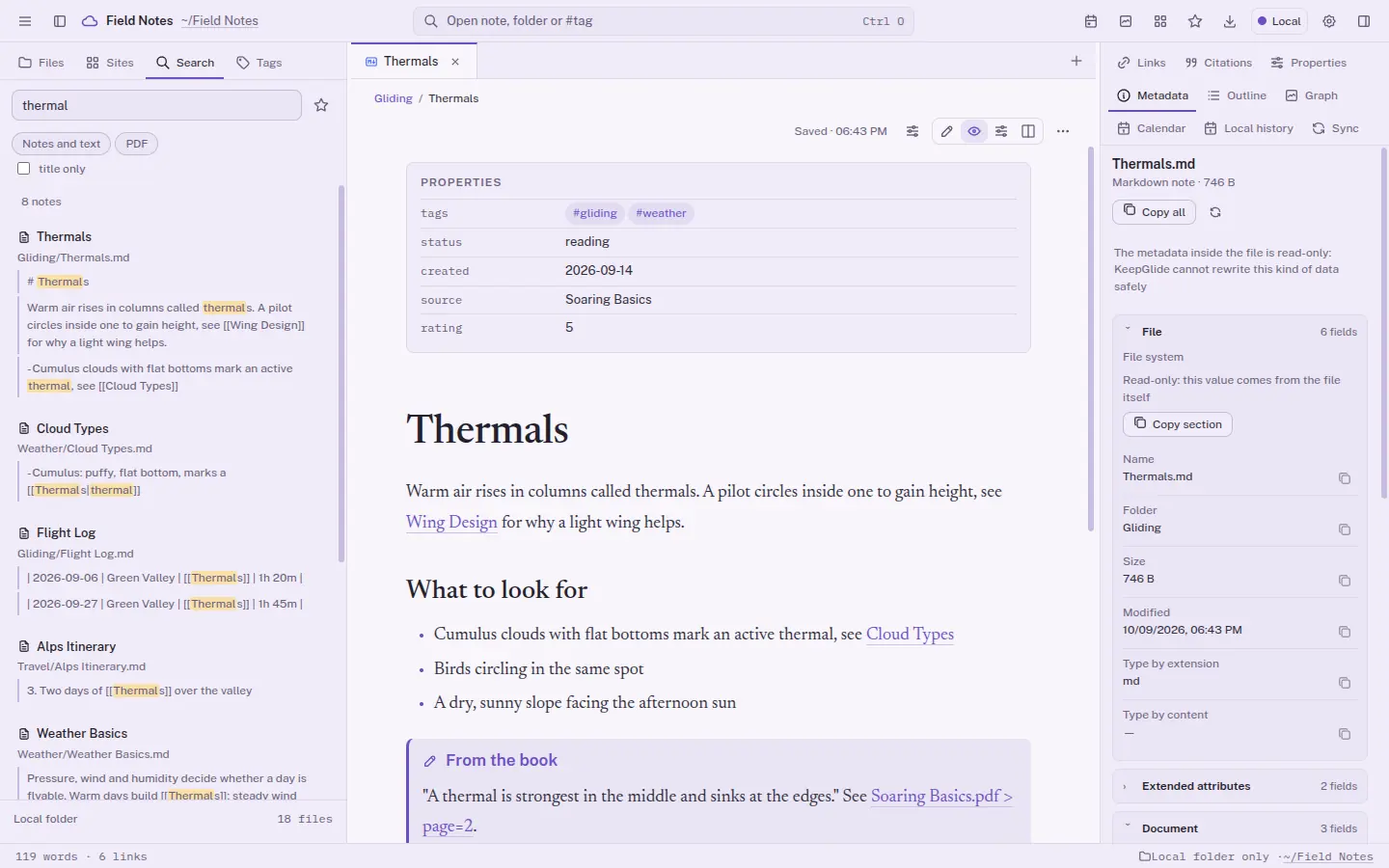
Type a word and open a matching note from the results.
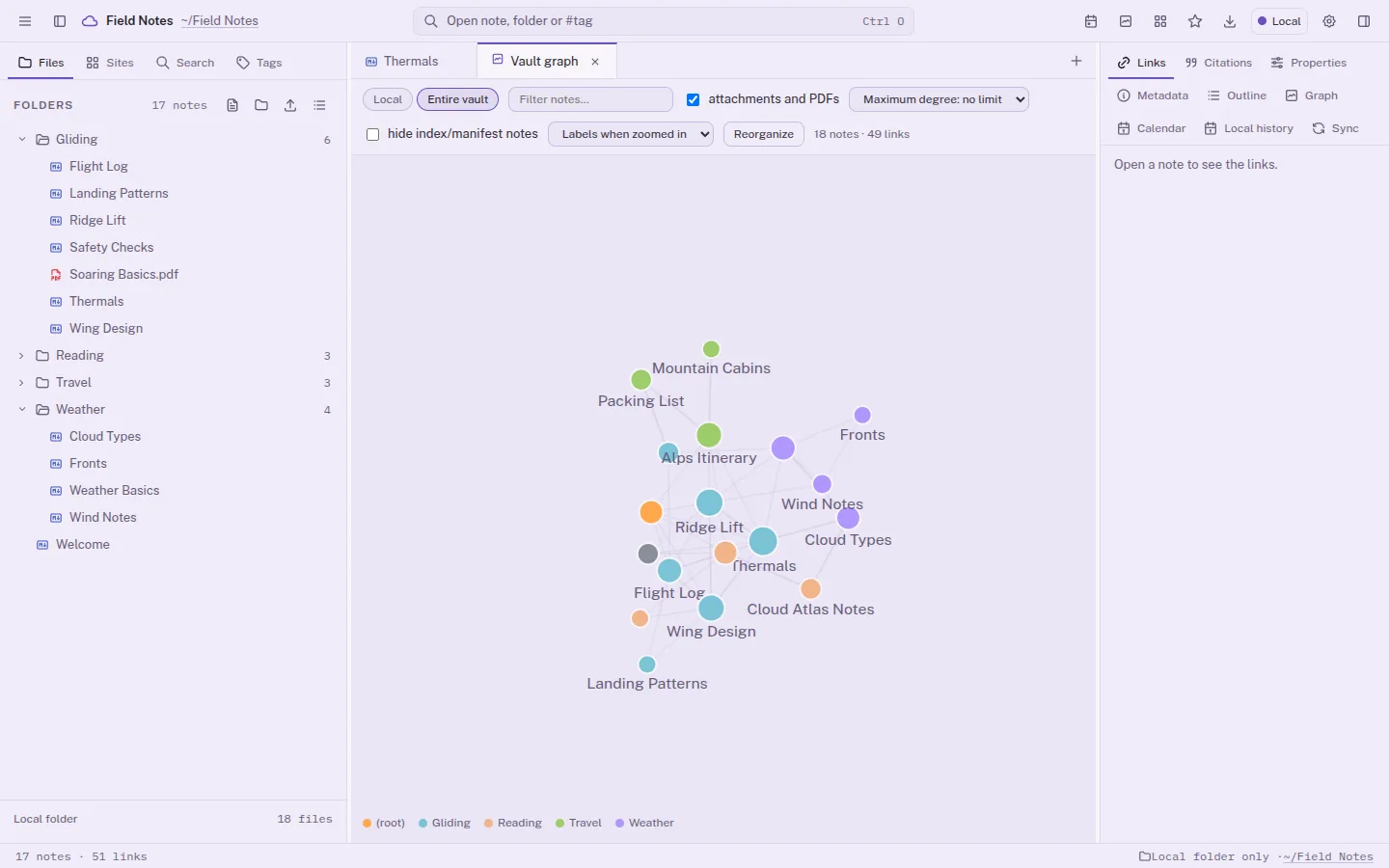
Open the vault graph and zoom into clusters of connected notes.
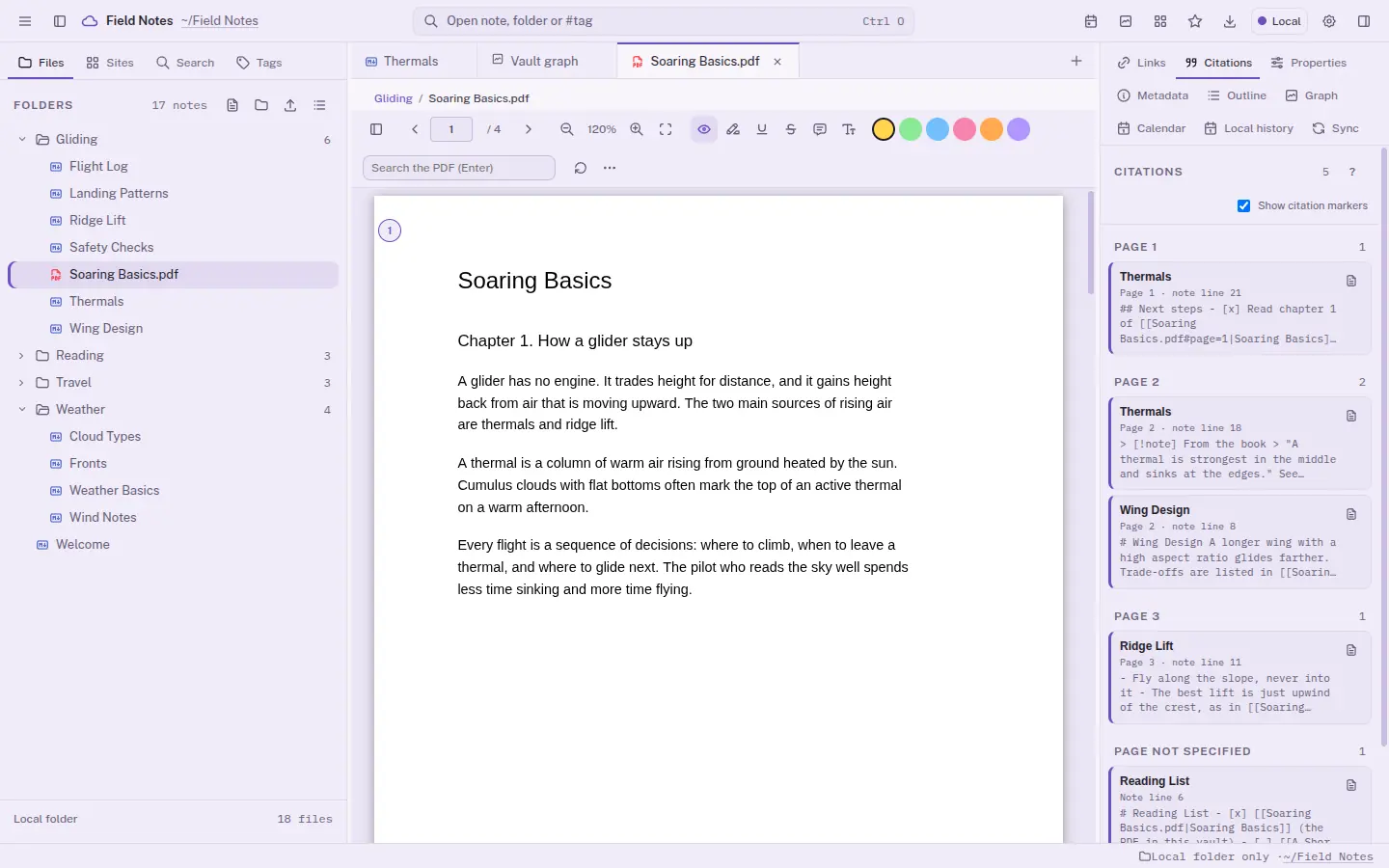
Open a PDF next to your notes and scroll through its pages.

Link a note to page 2 of a PDF and see the citation marked on the page.

See the line and column of a syntax error, then format the file with one click.
Switch a Markdown note between edit, read and side by side.
Your files
Each note is a .md file, in a format you can open without the KeepGlide app. In Local and Sync modes the files sit in a folder on your computer, and Local mode needs no account. In Cloud mode they live in your Google Drive.
Link notes with [[name]] or embed them with ![[name]]. Rename or move a file and the links to it are rewritten.
Frontmatter is shown formatted above the note, and #tags work in the text.
Task checkboxes, callouts, tables and ==highlights== in the note.
Code blocks with syntax highlighting, and math with KaTeX and Mermaid diagrams in read and side-by-side views.
The whole app
Seven areas, from writing to keeping your files safe. The big card in each area is the one to look at first.
Plain Markdown, with the tools a long note needs.
Three views for every note: edit the source, read the result, or see both at once.
Bold, italic, strike, highlight, code, wikilinks, tasks and headings.
Tables, callouts, task checkboxes and ==highlights==.
Math with KaTeX and Mermaid diagrams in read and side-by-side views.
Code blocks with syntax highlighting.
Frontmatter shown formatted above the note.
Export notes to PDF in batches, with layout presets.
Link notes and see how they fit together.
Link with [[note]] and embed with ![[note]], then see the graph of the vault.
A backlinks panel for every note.
Find mentions of a note and turn them into links.
The graph of the current note or of the whole vault.
#tags in text, plus emoji, color and tags per folder.
Rename or move a file and the links to it are rewritten.
A built-in MCP server lets AI agents read your notes and PDFs. Writing stays off until you turn it on. How MCP works
Open documents, PDFs and media next to your notes.
Highlight, underline and strike marks, plus notes and text boxes, in several colors. Then cite the page from a note.
Find text in the document and rotate pages.
An EPUB, MOBI, FB2 and CBZ reader.
ODT and DOC viewing. DOC needs LibreOffice, antiword or catdoc.
XLS and XLSX, read-only. CSV and TSV open as text.
Images open, and audio and video play, inside the app.
See what is inside a ZIP without extracting it.
Check, format and edit structured files.
Errors show with line and column as you type, and one click formats the file with two-space indentation.
Before
{"title":"Thermals","tags":["weather","lift"],"links":3}After
{
  "title": "Thermals",
  "tags": [
    "weather",
    "lift"
  ],
  "links": 3
}
JSON blocks inside notes are validated and formatted at the cursor.
One click re-indents any JSON file.
Record by record, with an error for each bad line.
Code and config files open with syntax highlighting (JSON, XML, SQL, HTML, CSS, JS, Python, Go, Rust and more).
Read a file's metadata and copy it as text or JSON. Edit PDF, SVG and XMP metadata, with undo.
Find anything quickly and keep your place.
Filter with #tag, path: and color:, by file type, or by title only.
Open a file with Ctrl+O, or run a command with Ctrl+P.
Tabs, split panes and pop-out windows.
Keep shortcuts to folders, files, saved searches, headings and blocks.
Recent files on this computer, and a thumbnail grid for large folders.
Open a folder or a Markdown file from outside the vault, read-only.
Local deletes go to the trash first. By default, a sync conflict merges the edits into one note; when they overlap, or the file is not a note, both versions are kept.
In Local mode, a deleted file waits in the trash until you restore it or delete it forever.
Compare versions and restore one.
By default, edits on both sides of a note are merged into one note; if they overlap, or the file is not a note, both versions are kept and the other one goes to a _conflicts folder.
Local, Sync (a local mirror with a queue) and Cloud (Google Drive).
In Sync mode, changes wait in a queue while you are offline, and the queue survives restarts.
By default the app listens only on this computer (127.0.0.1); an optional tailnet listener for MCP stays off until you turn it on. Sync and Cloud modes connect to Google Drive and ask for Drive access. Update checks are opt-in and off by default. No analytics in the app.
Shape the look, the language and the keys.
Each one is light or dark, plus custom themes of your own.
Separate fonts for the interface, editor, reading and monospace text, and the text size.
English and Brazilian Portuguese.
Remap the shortcuts of the app's commands.
An onboarding tutorial, with a walkthrough for setting up Google Drive.
Make it yours
The KeepGlide app ships 24 built-in themes, each light or dark, plus custom themes. Six of them are below as examples. Pick one and this page takes its color.
Previewing: Lavender (light)
Keep in step
Sync and Cloud modes connect your vault to Google Drive, when you choose them. Sync mode keeps a folder on your computer in step with Google Drive through a queue: while you are offline, changes wait in the queue. In Cloud mode the files live in Google Drive, with a read cache on your computer.
KeepGlide for desktop 1.x is an app for Linux (x86_64). It ships as an AppImage (one file you run without installing), a .deb and an .rpm. Windows, macOS and Android are in production: join each waitlist.
Sync and Cloud modes work with Google Drive.
Local mode keeps your files on your computer and needs no account. Sync mode keeps a folder on your computer in step with Google Drive, and changes made offline wait in a queue. Cloud mode keeps your files in Google Drive, with a read cache on your computer. Sync and Cloud modes ask for Drive access. No analytics in the app.
Linux is out now, free. Windows, macOS and Android are in production. Paid licenses are not open yet.
Local mode is free. When paid licenses open, a license will add Sync and Cloud: US$19, one-time. Free updates for all 1.x versions.
Download for Linux